How To Transfer Text Messages From Android to iPhone
Every cell phone and smartphone user sends and receives text messages to stay connected with friends and family. There are several other apps available on smartphones that are very important, but text messages are the most important and precious, and no one wants to lose their text messages. When you have no internet connection for browsing the internet, then a text message is the only cheap method to connect with loved ones.
If you are an old Android user and have tired of your smartphone, you will jump to an iPhone for the latest features and new look. After buying a new iPhone, the first question that will come to your mind is how you will transfer text messages from Android to iPhone. Everyone must keep all data, especially text messages. Below you will find the complete solution of transfer messages to the iPhone.
The IOS app can not be used to transfer messages to an iPhone
IOS app is used to transfer data from
android or any other device to the iPhone. There are several tutorials and reviews available about the IOS app to transfer data from Android to iPhone. The actual story is this by using the IOS app, you can transfer all other data like videos, audio files, and documents easily, apart from text messages. When you open the IOS app, you will never find the text messages icon or button. If you have decided to transfer your text message from the IOS app, this process will be a total waste of time because the IOS app has several limitations and does not allow transferring text messages. Anyhow, we have also described below the way of transferring text messages from Android to iPhone using the iOS app.
Here we will describe how you can transfer text messages from Android to iPhone using the MobileTrans App.
I got a new iPhone but one question clicks in my mind how can I transfer text messages from android to iPhone.
Method 1: Transfer Text Messages From Android to iPhone
There are several apps available that you can use to
transfer text messages from Android to iPhone for free. Here we will describe the phone transfer app with the name of
Mobile Trans Phone Transfer, which is the best and most valuable to transfer text messages from Android to iPhone. The usage of this app is very easy; any end-user can easily transfer messages to an iPhone after some clicks. The phone Transfer app is not only available for transferring text messages, but the user can also transfer all other data, like videos, audio, documents, contacts, and SMS as well.
Following is the guide of transfer text messages from Android to iPhone using Mobile trans phone transfer
Install and run the Program on your computer
To use the download link, you have to install this app on your computer. This app can easily operate on both Windows and Mac operating systems. After completing the installation process, this app will automatically launch. The following image will show on your screen. Now you have to click the switch to download the built-in function.
Connect an iPhone and an Android Phone to the Computer
In this step, you have to ensure the USB driver of Android and iPhone is installed on your computer. Now connect your iPhone and Android to your system using the compatible USB cable. The software will automatically detect your mobile phones. The software will start processing and scan the stored data from both connected mobiles.
Load the Data on your Screen
When the scanning process finishes, the software will analyze the phones and the SIM internal memory. After that, all the analyzed data will load and display on your computer screen. You have to keep in mind that you are transferring data from an Android to an iPhone, so your source phone should be an Android phone, and the destination phone should be your iPhone. In any case, if you have not checked the right orders, your process of transferring data will be wrong. Using the flip button, you can change the order.
Start transferring text messages to new iPhones.
Here you will be able to transfer data from an Android phone to an iPhone. All loaded data will be available on the screen. Here you just check the text message option and uncheck all other data options. You can check any other data option if you want. You have done almost just click on the Start Transfer button, and the data will start transferring from Android to iPhone.
There are some other valuable features of this app, like you can take the backup of your contents and saving it to your computer for future use. If you want to take a backup of videos, photos, and music, you can do it. In the future, this backup can be restored to your phone if you have lost your data.
Method 2: Transfer Data Wirelessly with MobileTrans – Copy Data to iOS
MobileTrans is a user-friendly application that allows the transfer of 11 different types of data. Using Mobiletrans, you can transfer your data when you want, no matter how you are already using your iPhone. MobileTrans application can transfer contacts, messages, call logs, photos, documents, videos, blacklists, bookmarks, and many more. Users need to connect both devices to a computer using a cable and a USB adapter. The following steps can be taken to transfer text messages from Android to iPhone.
Step 1: Connect your iPhone and Android
The first step requires connecting both devices, Android and IOS using a USB-C adapter and cable. Now unlock your iPhone and grant the needed permission after a successful connection.
Step 2: Select what you wish to transfer
Launch the MobileTras application after connecting both devices successfully with computer. The list allows you to transfer anything that you want. Before pressing Start importing button must sure the Message option is checked.
Step 3: Transfer your data
Now that you have done everything, the application will start transferring text messages from Android to iPhone. After finishing the process, you will be notified about the status. Now remove your devices from your computer and enjoy your old Android messages on your iPhone.
Method 3: Transfer Messages using Move to iOS
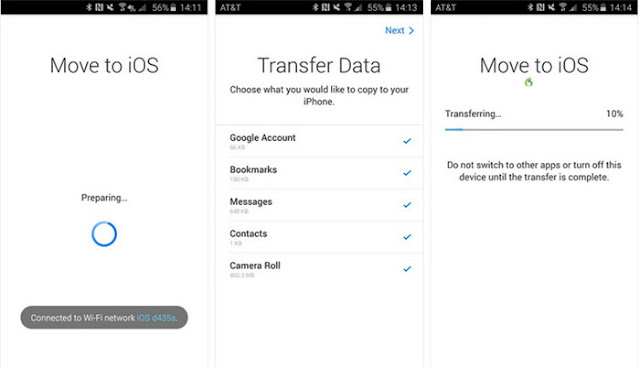
Apple released an app to solve the problem of transferring text messages from Android to iPhone with the name Move to iOS app. This application requires Android 4.3 or a later version for transferring messages from Android to iPhone. Not only can messages, but also other data like camera, Roll Data, Contacts, bookmarks, and Google data be transferred.
For making this process successful, both devices should be located nearby. The following are the complete steps using that the user can transfer text messages from Android to iPhone using the Move to iOS app.
Download the Move to iOS app from the Play Store using your Android phone. Perform the initial step on your iPhone after turning it on. Now you have to select move data from an Android while setting up your phone.

In the next step, launch the Move to iOS app on your Android phone. Make sure Wifi and Bluetooth features are enabled in both devices. Confirm both devices are located nearby, then press the continue button.
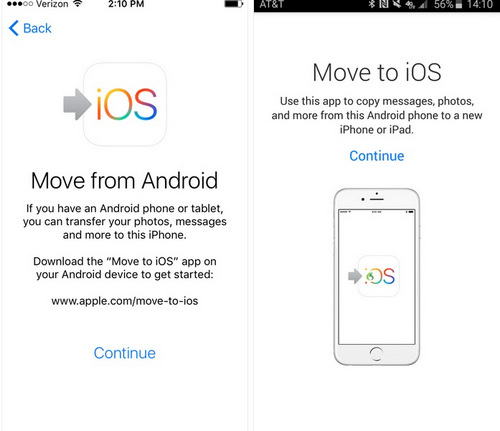
For making secure connection iOS device display one unique code that you have to enter into your Android phone.

When Android and Apple both connect successfully, you will be asked what you want to move. Now select the Message option from the list and wait for transferring a message from Android to iPhone.
Limitations
Limited data supported
This feature is only available while setting up a device.
Sometime compatibility issue user has to face.
Method 4: Transfer Messages Wirelessly with Send Anywhere
Apart from the above-mentioned procedures of transferring text messages from Android to iPhone, you can also use the Send Anywhere app. This is a free app available for both platform Android and iOS platforms via the Play Store and App Store.
A very easy and simple way for users to transfer text messages, contacts, photos, and other data.
Go to your device’s Play Store and App Store and search Anywhere app. Install the app using simple steps, then launch it and grant the necessary permissions, such as access to a storage device.
After launching the app on both devices, mark the device’s sender and receiver correctly. Now, turn on the WiFi to establish the wireless connection.
The app will ask what you want to transfer from Android to iPhone. Now select the Message option and press the start button. It is not mandatory to select only the Message; you can select anything from the list that you want.
A one-time code will be displayed on the Android device that you have to enter into your iPhone to verify the connection. Simply tap on the upload button and wait for the transfer of text messages from Android to iPhone.
Limitations
• Compatibility issues between different platforms
• Not supported by every iOS/Android device
If you want to read more about SMS backup and restore, you can read it here.